Aera 0.8.0: Tasks that run on their own, a real Files library, and an agent that remembers
This is one of the biggest Aera updates yet. Your scheduled tasks now run even when Aera is closed, the agent has its own Files library it can read and write, you can point it at exactly what you mean with @-mentions, it remembers useful details across chats, and it can write and run code to handle the things a browser alone cannot. Here is everything new.
Scheduled tasks now run even when Aera is closed
Until now, a scheduled task only fired if Aera happened to be open. That is no longer the case. A lightweight background service keeps your schedule running at all times. When a task is due, it quietly starts the browser, runs the task, and closes it again, all without interrupting you.
By default this happens silently in the background. If you would rather watch a task run, you can switch it to open in the foreground.
Where to find it: Settings > Aera Service > Scheduled Task Launch (Silent or Foreground).
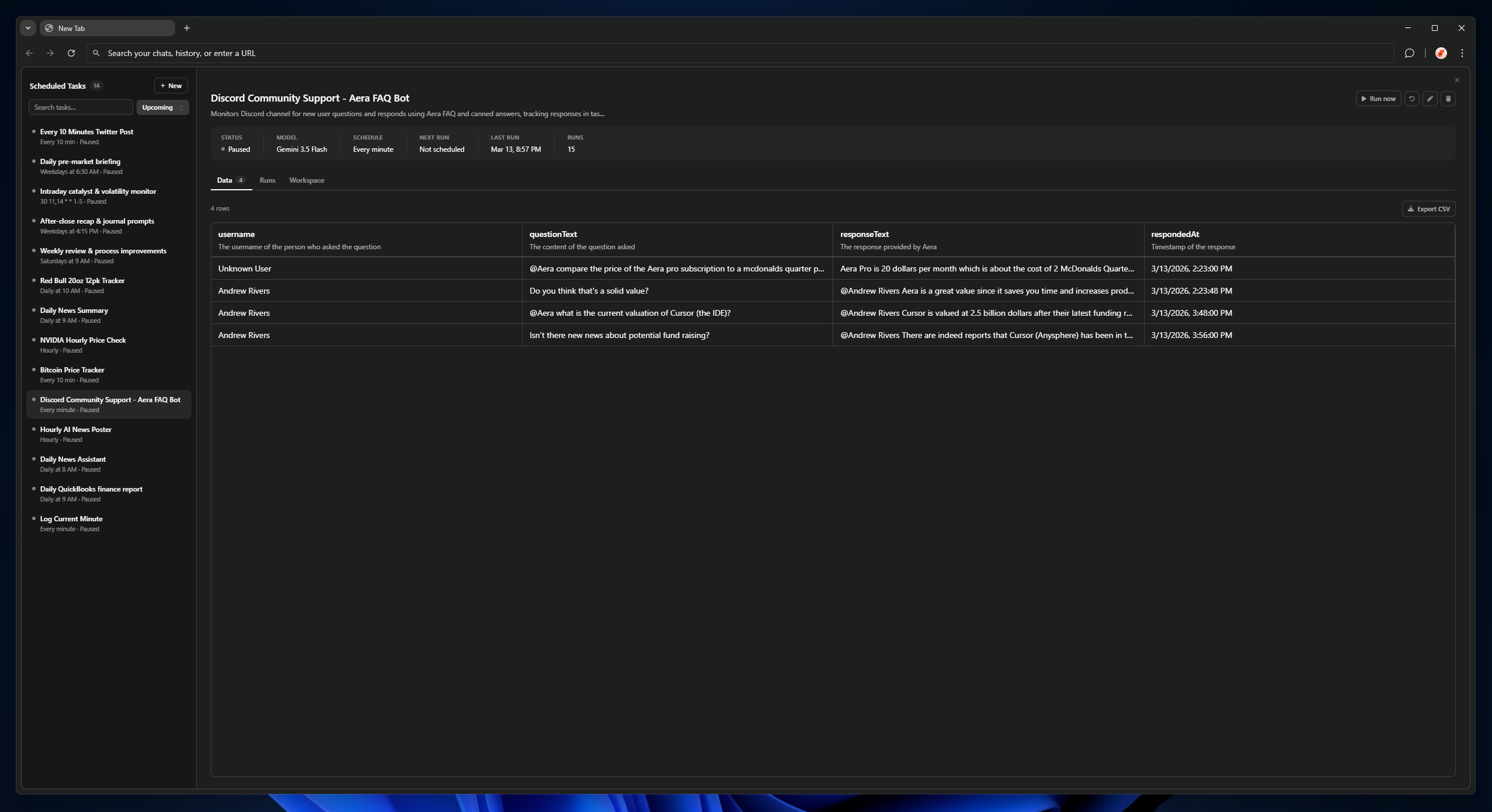
The Scheduled Tasks page has also been redesigned around a cleaner two-pane layout. Schedules now read in plain English ("Weekdays at 9 AM", "Every 15 min", "Monthly on day 15") instead of raw cron text, you get a live countdown to the next run, and every task has its own data tables and file workspace so it can build up results over time.
If you connect Aera to other tools over MCP (such as Cursor or Claude Code), those connections now persist through the same background service. Your tools can reach Aera and even wake it when they need it, without you keeping the browser open.
Where to find it: Settings > Aera Service > External MCP Access.
A Files library the agent can actually use
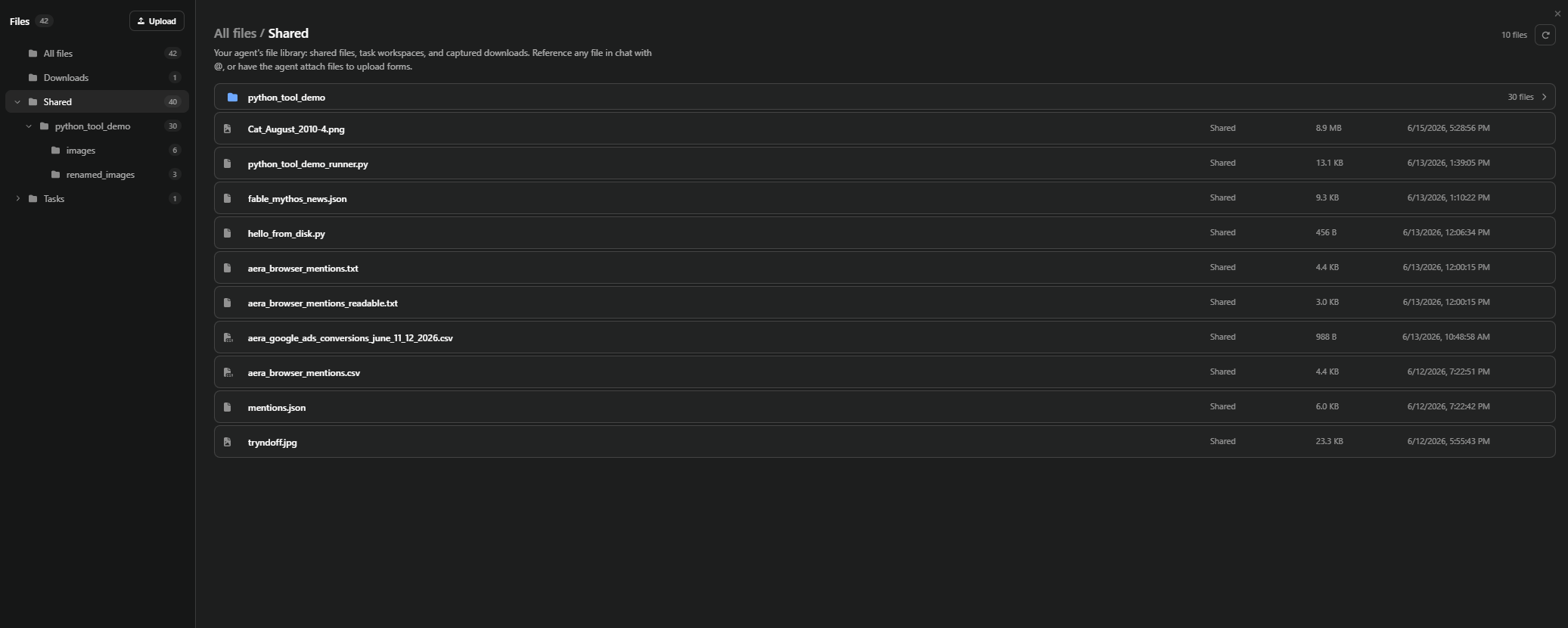
Aera now has a proper Files library. Anything the agent creates, and anything you or it downloads, is kept and organized for you.
- The agent can save files, read them back later, and upload files straight from your library into a website. For example, it can attach a document you saved to a form or upload box for you.
- Files you download yourself while browsing are captured into the library automatically, so they are always close at hand.
- Each scheduled task gets its own workspace, and a file can be linked into more than one task without being copied around.
You can manage everything from the new Files page: a folder explorer on the left, your files on the right, and a full-screen viewer that previews images, PDFs, video, and audio. Text and code files open in a built-in editor with a Save button, so you can make quick edits without leaving Aera.
Where to find it: Open a New Tab and select Files.
Point Aera at exactly what you mean with @-mentions
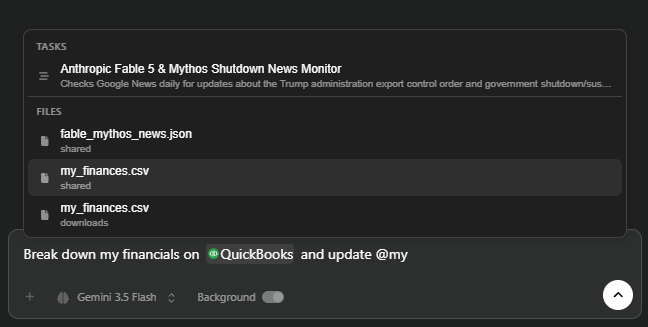
Type @ in the chat box to reference your open tabs, your scheduled tasks, and your saved files directly in a message. Mentions appear as clean chips, both as you type and in the message you send.
This makes requests far more precise. Mention an open tab to tell Aera which page you mean, mention a task to talk about it, or mention a file to bring it into the conversation. If you mention an image or a PDF, Aera looks at it directly rather than guessing from the filename.
Aera now remembers
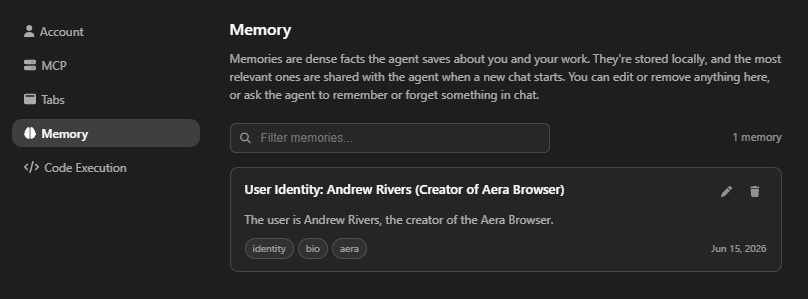
Aera can now hold on to useful details across chats so you are not repeating yourself every time. When you start a new chat, it automatically brings up anything relevant it has learned, and it can save new details as you work.
Everything it remembers is stored locally on your device, and you are fully in control. You can browse, edit, or delete any memory at any time.
Where to find it: Settings > Memory.
The agent can write and run code
Some tasks are simply better handled with a bit of code: converting and transforming files, parsing messy data, or running calculations. Aera can now write and run Python to do exactly that, and any files it produces land right back in your Files library.
This is turned off by default. You can enable it whenever you want to give the agent that capability, and for scheduled tasks you can allow it on a per-task basis.
Where to find it: Settings > Code Execution (off by default). For a scheduled task, use the Allow code execution option in the task editor.
Tab Cats!
A little something fun. Turn on Tab Cats and pixel cats will live along the bottom of the sidebar, carrying around your agent's background tab previews while it works. They are purely cosmetic and never touch your real tabs or the agent. You can choose how many appear.
Where to find it: Settings > Tabs > Tab Cats.

Smaller improvements and fixes
- Aera can now include clickable chips in its replies that link straight to a file, tab, task, or memory it is referring to.
- Tool calls in the sidebar are easier to follow, with clearer cards for files, code, and produced results.
- Chat tabs no longer flicker while the agent is responding.
- Fixed an issue that could sign you out unexpectedly when Aera started up.